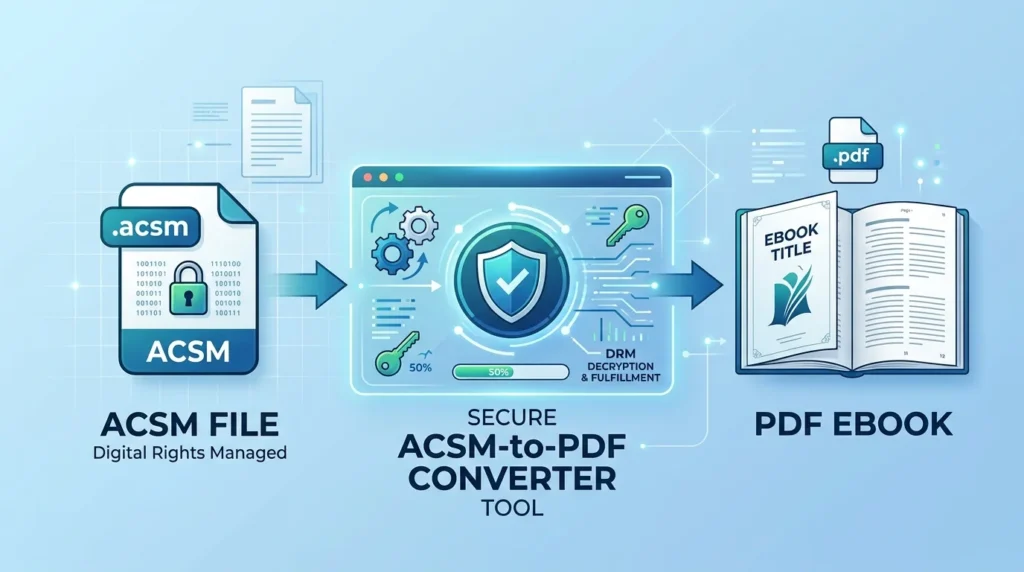
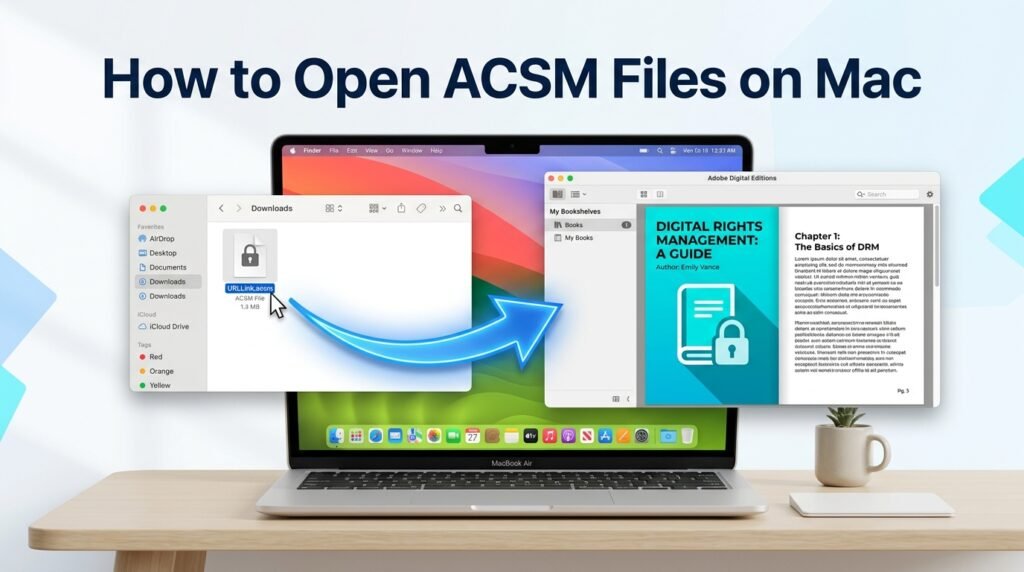
How to Open ACSM Files on Mac is simple once you understand that an ACSM file is not the ebook itself but a fulfillment file used to download the actual book from a library, publisher, or ebook store. On macOS, Adobe Digital Editions is commonly used to open the file, complete any required authorization, and retrieve the available ebook, while the steps below also cover useful Mac settings and common issues that may prevent the file from opening correctly.
What Is an ACSM File?
ACSM stands for Adobe Content Server Message. It contains information that a compatible ebook application uses to communicate with the content provider and fulfill a book download.
You may receive an ACSM file after:
- Borrowing an ebook from an online library
- Purchasing a protected digital book
- Downloading course material from an educational platform
- Accessing a title from a publisher using Adobe-based delivery
Because the file is part of the delivery process, it must be handled by compatible software before you can read the book.
What You Need on Your Mac
Before opening the file, make sure you have:
- A Mac computer
- A stable internet connection
- The original
.acsmdownload - Adobe Digital Editions installed
- The account associated with the ebook when authorization is required
Keeping the original download until the book is successfully added to your library can also be helpful if you need to retry the process.
How to Open ACSM Files on Mac
Install Adobe Digital Editions
Download Adobe Digital Editions for macOS from Adobe’s official website.
Once the installer has downloaded:
- Open the installer file.
- Follow the installation instructions.
- Go to the Applications folder.
- Open Adobe Digital Editions.
Downloading the application from the official source helps avoid outdated or modified installers.

Authorize Adobe Digital Editions
Some ebooks require your Mac to be authorized before the download can be completed.
In Adobe Digital Editions:
- Open Help from the menu bar.
- Select Authorize Computer.
- Choose the required ebook vendor if shown.
- Enter your account details.
- Complete the authorization.
If your ebook came from a service linked to a particular Adobe ID or vendor account, use the same credentials whenever possible.
Do not change authorization unnecessarily if you already have protected books working under the current account.

Locate the ACSM Download
Most browsers save ACSM files in the Downloads folder.
Open Finder and go to:
Downloads
Look for a file ending in:
.acsm
The filename may look generic rather than displaying the full title of your book. That alone does not mean the file is incorrect.
Open the ACSM File With Adobe Digital Editions
Right-click the ACSM file and select:
Open With → Adobe Digital Editions
If Adobe Digital Editions is not listed:
- Choose the option to open the file with another application.
- Open the Applications folder.
- Select Adobe Digital Editions.
- Confirm your choice.
You can also launch Adobe Digital Editions first and choose the ACSM file from inside the application.
Complete the Ebook Download
Once the file opens, Adobe Digital Editions contacts the provider’s server and checks the fulfillment information.
If the file and account permissions are valid, the associated book will be added to the Adobe Digital Editions library.
At that point, open the book directly from the library view.

Set Adobe Digital Editions as the Default ACSM App
If your Mac opens ACSM files with Preview, Acrobat, or another application, change the default program.
Use these steps:
- Right-click an ACSM file in Finder.
- Select Get Info.
- Expand Open with.
- Choose Adobe Digital Editions.
- Select Change All if you want the setting applied to other ACSM files.
After this change, double-clicking the same file type should automatically use Adobe Digital Editions.
Where to Find the Downloaded Ebook
After a successful download, open Adobe Digital Editions and check its library or bookshelf view.
The book should appear there and can be opened directly from the application.
The original ACSM file may remain in the Downloads folder, but once fulfillment has completed successfully, you usually do not need to open that download again for normal reading.
ACSM File Not Opening on Mac
If the standard process does not work, use the relevant fix below.
Wrong App Opens the File
If Preview, Acrobat, or a browser launches instead of Adobe Digital Editions, correct the file association using Finder’s Get Info menu.
This is particularly useful if you previously selected another app by mistake.
Authorization Error
Open Adobe Digital Editions and check the authorization information.
Confirm that:
- The expected account is signed in
- The ebook was obtained using that account
- You have not unintentionally switched to another vendor ID
If a protected title was originally fulfilled under another account, changing credentials may prevent access.
Download Does Not Start
Check your internet connection first.
If the connection is working normally:
- Close and reopen Adobe Digital Editions
- Download a fresh ACSM file from the original provider
- Retry after a short period in case the provider’s server is temporarily unavailable
The ACSM File Has Expired
Library loans and temporary downloads can have limited validity.
If you are using an older ACSM file, return to the library or ebook store and obtain a new download if your access is still active.
An expired loan may need to be borrowed again.
One Ebook Fails but Others Work
When Adobe Digital Editions handles other ACSM files successfully but one title continues to fail, the issue may be related to that specific publication.
Try obtaining a fresh file.
If the same book still fails, contact the library, retailer, or publisher that supplied it.
File Downloaded Incorrectly
A browser interruption can leave you with an incomplete file.
Delete the problematic copy and download it again from the original source.
Do not download the same ebook from unrelated third-party sites as a workaround.

Can You Open ACSM Files in Apple Books?
Apple Books does not normally handle ACSM fulfillment directly.
If the book is distributed through an ACSM file, complete the download using the application supported by the provider first.
Whether the downloaded publication can later be used with Apple Books depends on its format and licensing restrictions.
Some protected titles are intended to remain inside compatible reading software.
Can Preview Open ACSM Files?
Preview is designed for documents such as PDFs and common image formats.
It does not perform the server communication and authorization required for ACSM fulfillment.
If Preview launches automatically, change the default application to Adobe Digital Editions.
Can You Open ACSM Without Adobe Digital Editions?
Adobe Digital Editions is commonly used with ACSM downloads, but some ebook providers may support their own reader or another compatible application.
Check the instructions supplied by the store or library where you obtained the title.
It is better to use an authorized reader than to upload the ACSM file to an unknown online conversion website, especially when the download is linked to a purchase, library loan, or account.
ACSM, EPUB, and PDF Differences
These file types serve different purposes.
| File Type | Purpose | Read Directly? |
|---|---|---|
| ACSM | Controls ebook fulfillment | No |
| EPUB | Reflowable ebook format | Yes |
| Fixed-layout document format | Yes |
If the provider distributes the title as EPUB, that is what the fulfillment process delivers. If the title is supplied as PDF, the resulting download follows that format instead.
Can You Rename ACSM to PDF?
No.
Changing:
book.acsm
to:
book.pdf
only changes the filename extension. It does not rebuild the file as a PDF document.
Trying to open the renamed file in a PDF reader can therefore produce an unsupported or damaged file error.
Use the required fulfillment application instead of renaming the extension.
Useful Tips for Mac Users
For fewer ACSM problems:
- Download ebooks only from trusted providers.
- Keep Adobe Digital Editions installed while using Adobe-based ebook services.
- Use the correct account for licensed publications.
- Keep your internet connection active during the initial download.
- Set Adobe Digital Editions as the default ACSM application.
- Replace expired downloads with fresh files from the provider.
- Contact the original ebook source when only one title repeatedly fails.
Frequently Asked Questions
Why won’t my ACSM file open on Mac?
Common causes include the wrong default application, missing ebook software, an invalid download, authorization restrictions, or an expired loan.
Do I always need an Adobe ID?
Not every ACSM download works the same way. Some providers may allow fulfillment without a personal Adobe ID, while protected titles can require account authorization.
Why does my ACSM file open in Adobe Acrobat?
Your Mac has probably associated .acsm files with Acrobat. Change the default app through Finder → Get Info → Open with.
What happens after I open an ACSM file?
The compatible ebook application uses the file to request the publication from the provider and then adds the downloaded title to its library.
Can I open an expired ACSM file?
An expired library or temporary download may no longer work. Return to the original service and obtain a fresh file if your access is still valid.
What should I do if only one book gives an error?
Download a new copy of its ACSM file. If the same title still fails while other books work, contact the provider because the issue may be specific to that publication.
Conclusion
How to Open ACSM Files on Mac is straightforward when you use the application intended to handle the ebook’s fulfillment request. Install Adobe Digital Editions, complete account authorization when required, open the ACSM download through the correct app, and allow the book to be added to your library. If an error appears, checking the file association, authorization details, download validity, and internet connection will help you identify the most likely cause without unnecessary conversion attempts.